If your AirTag is acting up, refusing to connect, or you’re planning to pass it on to someone else, knowing how to reset AirTag can save time and frustration. Although Apple keeps the AirTag user experience simple, the reset process is very specific and requires mechanical steps.
As someone who regularly works with Apple tracking products, I can confirm this is one of those tasks that seems intimidating until you know exactly what to do.
Below, I’ll walk you through everything, from removing the battery cover to identifying the correct reset sound. You’ll also find a comparison table, troubleshooting tips, and clear FAQs to help you confidently reset your AirTag without errors.
Why Would You Need to Reset an AirTag?
Before we jump into the step-by-step guide, it helps to understand why a reset is required in the first place. AirTags don’t have a classic “reset” button or digital toggle, so Apple uses a battery-based process for a full refresh.
The most common reasons include:
- When the AirTag won’t connect or keeps disconnecting
- When you’re setting it up with a new Apple ID
- When you’re giving the AirTag to someone else
- When it won’t show its location properly
- When troubleshooting Bluetooth or Find My app issues
If the AirTag is still linked to an Apple ID, make sure you remove it from your account before resetting. Otherwise, the next person won’t be able to use it.
How to Reset AirTag: Step-by-Step Instructions
This is the official Apple-recommended method, and it works with all AirTag models.
Step 1: Remove the Battery Cover
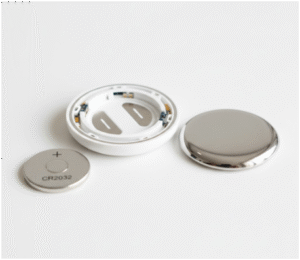
Turn the AirTag so the polished stainless-steel side is facing up.Press down firmly and rotate the cover counterclockwise until it stops. Lift the cover and remove the CR2032 battery. This action gives you access to the battery chamber—where the reset process happens.
Step 2: Reinsert the Battery and Press Until You Hear a Sound
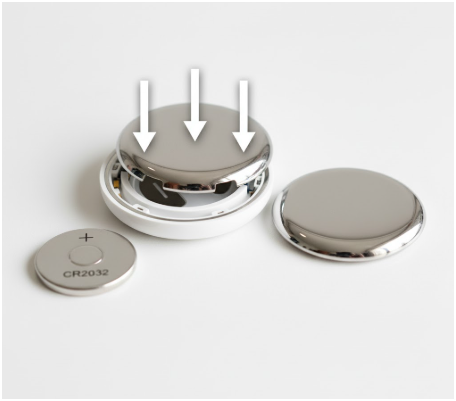
Place the battery back into the AirTag. Press down on the battery until you hear a short sound.
This sound confirms the AirTag is receiving power.
Step 3: Repeat the Battery Press Five Times in Total
Remove and reinsert the battery again. Press until you hear the sound.Do this five times.
Each of the first four presses will produce the same short tone.
Step 4: Listen for the Fifth Sound
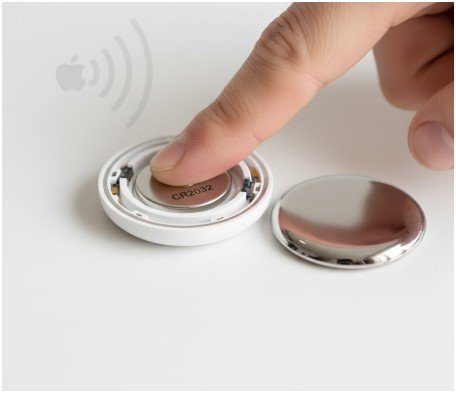
On the fifth press, the AirTag will play a distinct, slightly longer sound. That unique tone confirms the device has been fully reset. If you don’t hear the special tone, repeat the process from the beginning.
Step 5: Reattach the Cover
Align the three tabs on the cover with the three slots on the AirTag. Press down, then rotate clockwise until it locks securely into place. Your AirTag is now factory reset and ready to be paired with any Apple ID.
Quick Comparison: When to Reset vs. When to Just Replace the Battery
Sometimes people confuse battery replacement with a factory reset. Here’s a clean breakdown to help you decide what you actually need to do.
| Situation | Replace Battery | Reset AirTag |
| AirTag isn’t responding or making sounds | Yes | Try if issue continues |
| You’re giving the AirTag to someone else | No | Yes |
| AirTag won’t connect after several attempts | Maybe | Yes |
| Location updates are slow or inaccurate | No | Yes |
| Battery warning low | Yes | No |
| You removed the AirTag from your Apple ID | No | Yes |
Use this table as a quick reference whenever you face issues with an AirTag.
How to Remove AirTag from Your Apple ID Before Resetting
Resetting doesn’t automatically unlink the AirTag from your Apple ID. That must be done manually.
Here’s how to remove it:
- Open the Find My app
- Go to the Items tab
- Select your AirTag
- Swipe down and tap Remove Item
- Confirm your Apple ID password if prompted
Only after this step can someone else set it up.
Troubleshooting: What If the Reset Doesn’t Work?
If your AirTag won’t reset properly, here are some expert-tested solutions:
The AirTag Doesn’t Make Any Sound
- Make sure the battery is inserted with the plus side up
- Verify the battery isn’t expired
- Ensure you are pressing down firmly on the battery
- Clean the contacts with a dry cotton swab
Certain CR2032 batteries with a child-proof coating may also fail to make consistent contact.
The Fifth Reset Sound Doesn’t Play
This usually means one of the battery presses didn’t register.
Try again from scratch:
- Remove the battery
- Reinsert and press until you hear a sound
- Repeat five times
It has to be five successful sounds before the distinct reset tone.
The AirTag Still Appears in Find My
This indicates it’s still linked to the previous Apple ID. Sign into the original account and remove it manually.
How Long Does It Take to Reset an AirTag?
The full reset process takes about 20 to 30 seconds once you understand the steps. The part that usually takes the longest is aligning the cover, especially if it’s your first time handling the AirTag.
Can You Reset an AirTag Without the Battery Method?
Currently, no. Apple does not provide a software-based reset option. AirTags don’t have an on-device button, port, or digital command for factory resetting. The battery removal and five-press method is the only official approach.
How to Confirm Your AirTag Is Successfully Reset
Once reset:
- It will no longer be linked to any Apple ID
- It will chime when brought near an iPhone as a new item
- When you open Find My and choose Add Item, the AirTag should appear
- The setup animation will pop up on your iPhone when you bring the AirTag close
If your phone automatically recognizes it as a new device, the reset was successful.
Tips to Keep Your AirTag Working Smoothly After Reset
Here are a few expert recommendations:
- Keep the battery area clean and dry
- Replace CR2032 batteries every 8–12 months
- Avoid child-safe coated batteries, which may not work reliably
- Store your AirTag away from magnets or metal that could interfere with Bluetooth signals
- Make sure both Bluetooth and Location Services are enabled on your iPhone
These small steps will extend the life and accuracy of your AirTag.
FAQs About How to Reset AirTag
Do I need to remove an AirTag from my Apple ID before resetting?
Yes. Resetting alone does not unlink it. You must remove it from your Apple ID inside the Find My app if someone else will use it.
What if my AirTag doesn’t make the chime sound?
Your battery might be dead, inserted incorrectly, or not making proper contact. Replace it with a fresh CR2032 battery and try again.
How do I know the reset is successful?
You’ll hear a distinct, longer sound on the fifth press. After that, the AirTag will behave like a new device and be ready for pairing.
Can someone use my AirTag without resetting it?
No. If it is still tied to your Apple ID, no one else can activate it. They will be blocked until you remove it from your account.
Final Thoughts
Learning how to reset AirTag is essential for troubleshooting, transferring ownership, or fixing any connectivity issues.
Although the process might feel unusual the first time—especially with the repeated battery presses—it becomes simple once you know the rhythm.
With the step-by-step guide, table, and troubleshooting tips above, you can confidently reset your AirTag anytime and get it back to peak performance.